
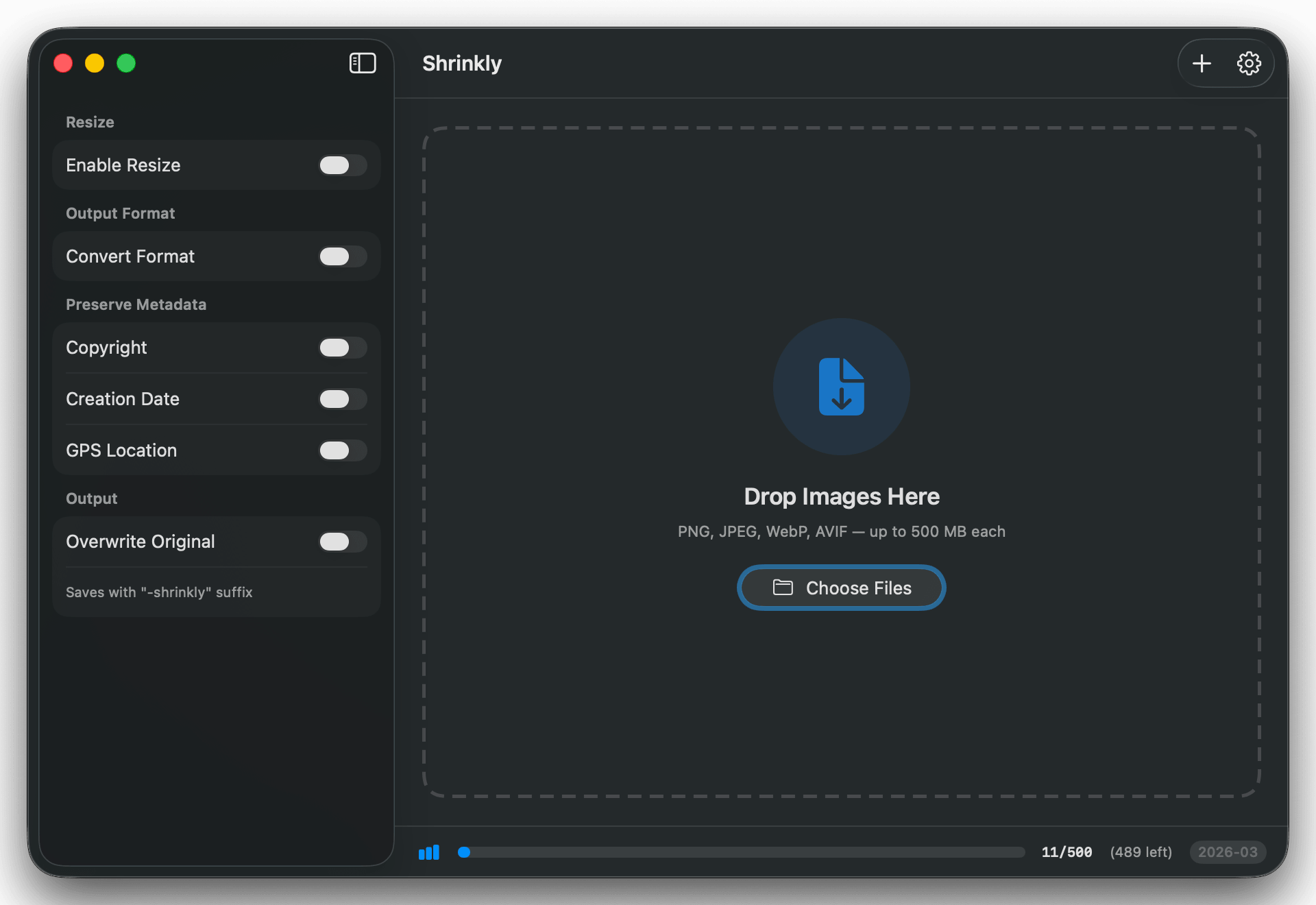
Shrinkly is a native macOS app for compressing images using the TinyPNG API. It supports PNG, JPEG, WebP, and AVIF formats with batch processing, live progress tracking, and optional resize and format conversion options — all in a clean, minimal interface.
Features
- Drag & Drop — Drop images directly onto the app or use the file picker to select multiple files at once
- Batch Compression — Compresses up to 3 images in parallel with a managed queue for the rest
- Live Progress — Per-file status updates: Queued → Uploading → Compressing → Downloading → Done
- Compression Stats — See before/after file sizes and the percentage saved for each image
- Resize Options — Scale, Fit, Cover, or Thumb modes to resize while compressing
- Format Conversion — Convert images to PNG, JPEG, WebP, or AVIF during compression
- Metadata Control — Optionally preserve copyright, creation date, and GPS location
- Output Control — Overwrite originals or save with a copy (auto-incremented to avoid conflicts)
- Monthly Quota Tracking — Visual bar showing how many of your 500 free monthly compressions you’ve used
- Retry Failed Tasks — Re-run any failed compression with a single click
- Context Menu — Right-click any task to reveal the file in Finder or retry it
- Settings (⌘,) — Manage your API key, view quota details, and validate your key at any time
Requirements
- macOS 14.0 (Sonoma) or later
- TinyPNG API Key — Free to get at tinify.com/developers. The free tier includes 500 compressions per month at no cost.
No other dependencies. Shrinkly is built entirely with Swift and SwiftUI — no third-party frameworks.
Getting Started
1. Get a TinyPNG API Key
- Go to tinify.com/developers
- Enter your email address and click Get your API key
- Check your email for the key
2. Install Shrinkly
Download the latest release, unzip it, and move Shrinkly.app to your /Applications folder.
On first launch, macOS may ask you to allow the app. Go to System Settings → Privacy & Security and click Open Anyway.
3. Enter Your API Key
On first launch, Shrinkly will show an onboarding screen. Paste your TinyPNG API key and click Get Started. The key is validated instantly and stored locally on your Mac.
How to Use
- Add images — Drag and drop image files onto the drop zone, or click Add Files in the toolbar
- Configure options (optional) — Use the left panel to set resize mode, output format, or metadata preferences
- Watch it compress — Files are processed automatically; each row shows live status and results
- Find your files — Compressed files are saved alongside the originals (or overwritten, depending on your output setting). Right-click any completed task and choose Show in Finder
Compression Options
| Option | Description |
|---|---|
| Overwrite Original | Replaces the source file with the compressed version |
| Save as Copy | Saves a new file with a -shrinkly suffix next to the original |
| Resize: Scale | Scales proportionally to fit the given width or height |
| Resize: Fit | Fits within the given dimensions while maintaining aspect ratio |
| Resize: Cover | Crops and resizes to cover exact dimensions |
| Resize: Thumb | Smart crop focusing on the most interesting area of the image |
| Convert Format | Converts the output to PNG, JPEG, WebP, or AVIF |
| Preserve Metadata | Keeps copyright, creation date, and/or GPS location in the output |
Supported Formats
PNG, JPEG, WebP, AVIF — maximum file size: 500 MB per image
Monthly Quota
TinyPNG’s free API tier allows 500 compressions per month. Shrinkly tracks your usage locally and syncs the count from the API after each compression. The quota bar at the bottom of the app changes color as you approach the limit:
- Blue — Plenty of quota remaining
- Orange — Over 75% used
- Red — Over 90% used
You can view detailed quota info and reset the local counter in Settings → Quota (⌘,).
Privacy
- Your API key is stored locally on your Mac and is never transmitted anywhere except to the TinyPNG API for authentication
- Images are sent to TinyPNG’s servers for compression — see TinyPNG’s Privacy Policy for details
- No analytics, telemetry, or tracking of any kind